Interaction to Next Paint (INP) in 2026: Complete Technical Guide to Passing Core Web Vitals


- Introduction: Why INP Dominates Technical SEO in 2026
- What is Interaction to Next Paint (INP)?
- How INP Differs from First Input Delay (FID)
- The Three Components of an Interaction
- Google’s INP Thresholds
- Primary Causes of Slow INP Scores
- 1. Monolithic JavaScript Tasks (> 50ms)
- 2. Hydration Overhead in Modern Frameworks
- 3. Complex DOM Recalculations and Layout Thrashing
- 4. Third-Party Tracking Scripts and Marketing Pixels
- Practical Technical Fixes to Pass INP in 2026
- 1. Yield to the Main Thread (`scheduler.yield()`)
- 2. Provide Instant Optimistic UI Feedback
- 3. Offload Heavy Work to Web Workers
- 4. Audit and Defer Third-Party Tag Managers
- Tools to Measure and Debug INP
- Conclusion: Building a Lightning-Fast User Experience
Introduction: Why INP Dominates Technical SEO in 2026
In modern web development and search optimization, loading speed is only half the battle. Users do not merely wait for a page to render—they immediately click buttons, tap navigation menus, filter products, and interact with dynamic elements.
When a visitor taps an interactive component and the website freezes or lags, user frustration peaks and conversion rates plummet. Recognizing this behavioral reality, Google established Interaction to Next Paint (INP) as a fundamental Core Web Vital metric.
In 2026, passing Google’s Core Web Vitals assessment requires a solid grasp of browser event loops, JavaScript thread management, and DOM optimization. This comprehensive guide breaks down how INP functions and provides actionable code patterns to keep your latency below Google’s 200-millisecond threshold.
What is Interaction to Next Paint (INP)?
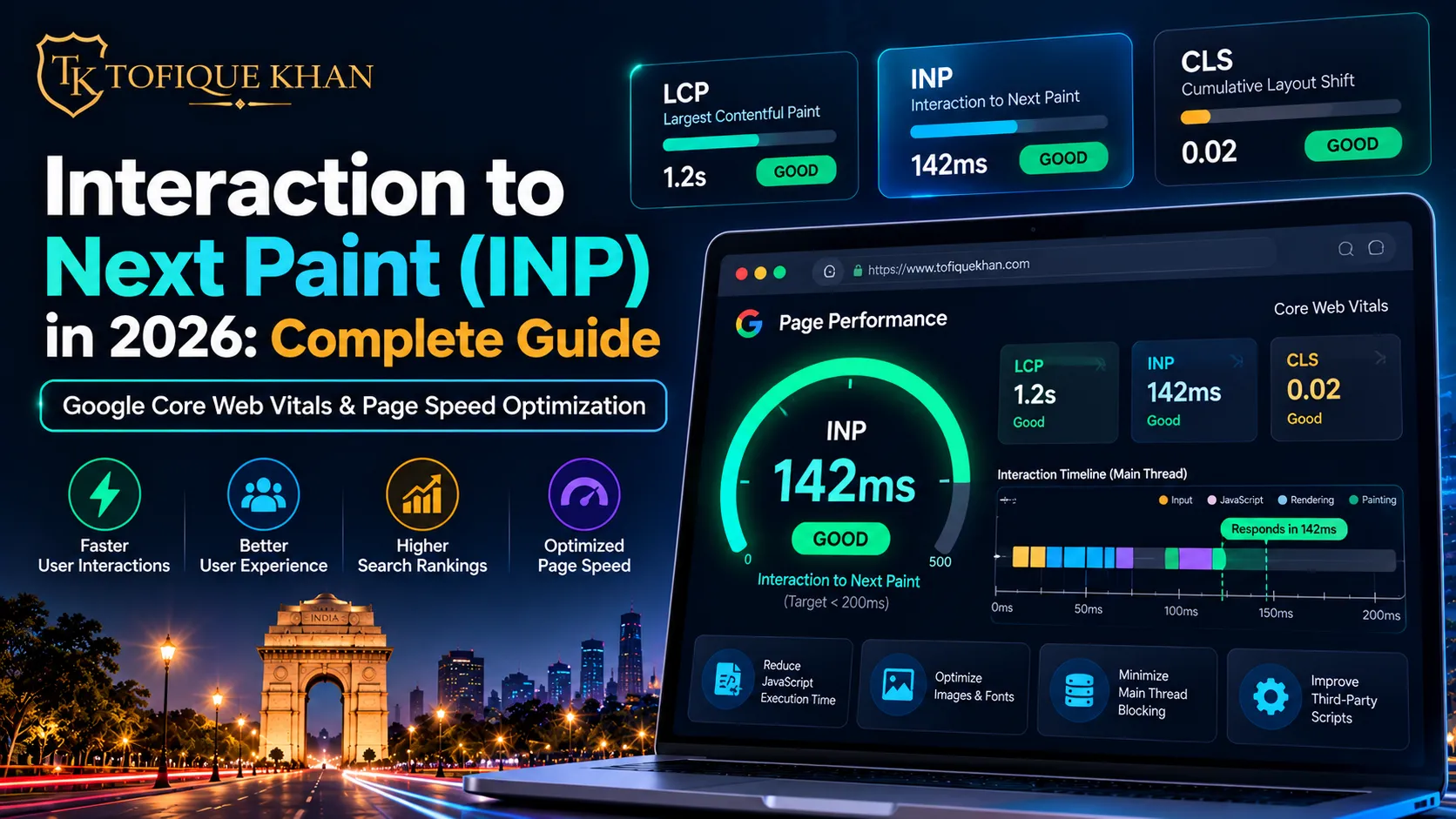
Interaction to Next Paint (INP) is a stable Google Core Web Vital metric that evaluates a webpage’s overall responsiveness to user interactions throughout the entire duration of a user session.
Whenever a user interacts with a page—whether by clicking a mouse, tapping a touchscreen, or pressing a key on a physical keyboard—INP observes the total time that elapses until the browser successfully renders the updated frame (the “next paint”) confirming that the action took place.
How INP Differs from First Input Delay (FID)
Before INP was introduced, Google relied on First Input Delay (FID). However, FID had major technical shortcomings:
| Metric Aspect | First Input Delay (FID) [Legacy] | Interaction to Next Paint (INP) [Current] |
|---|---|---|
| Session Scope | Only measured the very first interaction during page load. | Monitors all user interactions across the entire page lifecycle. |
| Measurement Window | Only measured input delay (waiting for thread to be free). | Measures input delay + JavaScript event processing + frame paint duration. |
| Representation | Often showed a “pass” even if later interactions lagged terribly. | Represents the worst-case interaction latency (typically 98th percentile). |
The Three Components of an Interaction
To diagnose and fix a sluggish INP score, you must understand the three phases that constitute every single user interaction:
- Input Delay: The duration between when the user initiates an action (e.g., clicks a button) and when the browser’s main thread is actually free to start executing the corresponding event callback.
- Processing Duration: The time required for JavaScript event listeners and state updates to run to completion.
- Presentation Delay: The time required for the browser rendering engine to recalculate styles, perform layout reflows, paint elements, and composite pixels onto the screen.
Total INP = Input Delay + Processing Duration + Presentation Delay
Google’s INP Thresholds
Google evaluates real-world user interaction data across the 75th percentile of page visits. The official grading scale is structured as follows:
- Good (≤ 200 ms): The page provides instantaneous visual feedback upon every click and tap. Full Core Web Vitals compliance is achieved.
- Needs Improvement (201 ms – 500 ms): Noticeable latency causes visual friction and increases bounce probability.
- Poor (> 500 ms): Severe interface lag. Users perceive the website as unresponsive or broken, triggering negative ranking signals in Google Search.
Primary Causes of Slow INP Scores
1. Monolithic JavaScript Tasks (> 50ms)
JavaScript executes on a single main thread. When a script runs a long task exceeding 50 milliseconds, the main thread becomes blocked. Any user click that arrives while that task is executing must sit in the queue, driving up Input Delay.
2. Hydration Overhead in Modern Frameworks
Single Page Applications and meta-frameworks (React, Next.js, Nuxt) often render HTML on the server, but subsequently execute massive client-side bundles during hydration. If a user clicks before hydration is complete, the click event stalls.
3. Complex DOM Recalculations and Layout Thrashing
Reading layout properties (such as offsetHeight or getBoundingClientRect) immediately after writing style changes forces the browser into expensive synchronous layout recalculations, inflating Presentation Delay.
4. Third-Party Tracking Scripts and Marketing Pixels
Tag managers, heatmaps, live chat widgets, and social pixels constantly schedule microtasks on the main thread, competing with legitimate user interactions.
Practical Technical Fixes to Pass INP in 2026
1. Yield to the Main Thread (`scheduler.yield()`)
Instead of executing one massive loop of computational logic, break execution into smaller chunks so the browser can breathe and process incoming user inputs in between. Modern browsers natively support scheduler.yield():
async function processUserAction(items) {
for (const item of items) {
processIndividualChunk(item);
// Yield execution back to the browser event loop
if (‘scheduler’ in window && ‘yield’ in window.scheduler) {
await scheduler.yield();
} else {
await new Promise(resolve => setTimeout(resolve, 0));
}
}
}
2. Provide Instant Optimistic UI Feedback
Do not wait for backend API responses or heavy calculations before visually acknowledging user input. Always update button states, open loading skeletons, or render modal backdrops immediately in the first animation frame (requestAnimationFrame).
3. Offload Heavy Work to Web Workers
Complex data formatting, client-side sorting, markdown rendering, and cryptographic hashing should never live on the main UI thread. Move CPU-intensive operations into a background Web Worker so the UI thread remains 100% available for user taps.
4. Audit and Defer Third-Party Tag Managers
Consolidate multiple marketing pixels into server-side tracking solutions where possible. For client-side tags, load non-essential scripts using defer or load them only after the primary interactive window has settled.
Tools to Measure and Debug INP
- Chrome DevTools Performance Panel: Use the “Interactions” track in DevTools to record a session, identify long tasks, and pinpoint exact lines of blocking code.
- Google Search Console (Core Web Vitals Report): Review field data directly from real Chrome users across desktop and mobile URLs to identify specific pages that fail INP.
- Web Vitals Chrome Extension: Inspect real-time INP latency on any page you visit during local development and staging testing.
- PageSpeed Insights: Provides automated lab diagnostics and 28-day rolling field data under the Chrome User Experience Report (CrUX).
Conclusion: Building a Lightning-Fast User Experience
Passing Google’s Interaction to Next Paint metric in 2026 is about respecting the browser’s main thread. By breaking up long tasks, deferring non-essential scripts, and delivering instant visual feedback, you guarantee that every visitor enjoys a frictionless browsing experience while securing optimal technical SEO rankings.
Frequently Asked Questions
Is INP a mobile-only metric?
No. INP is measured on both desktop and mobile devices. However, because mobile devices generally possess slower CPU processors, mobile INP failures are much more common.
Does a high INP score directly hurt search rankings?
Yes. Core Web Vitals are a confirmed Google page experience ranking signal. While content relevance remains paramount, when competing against comparable websites, a passing Core Web Vitals score gives you an edge in both rankings and user retention.
Can caching fix INP?
Caching improves Largest Contentful Paint (LCP) and Time to First Byte (TTFB), but it does not resolve INP. INP is caused by client-side JavaScript execution and browser rendering latency, which must be solved in code.